Configure Druid SIP Connectivity
To establish the connection between your AI Agent and your telephony system:
Step 1. Set up Druid SIP general settings
- In the Druid Portal, navigate to your AI Agent and select the Channels tab.
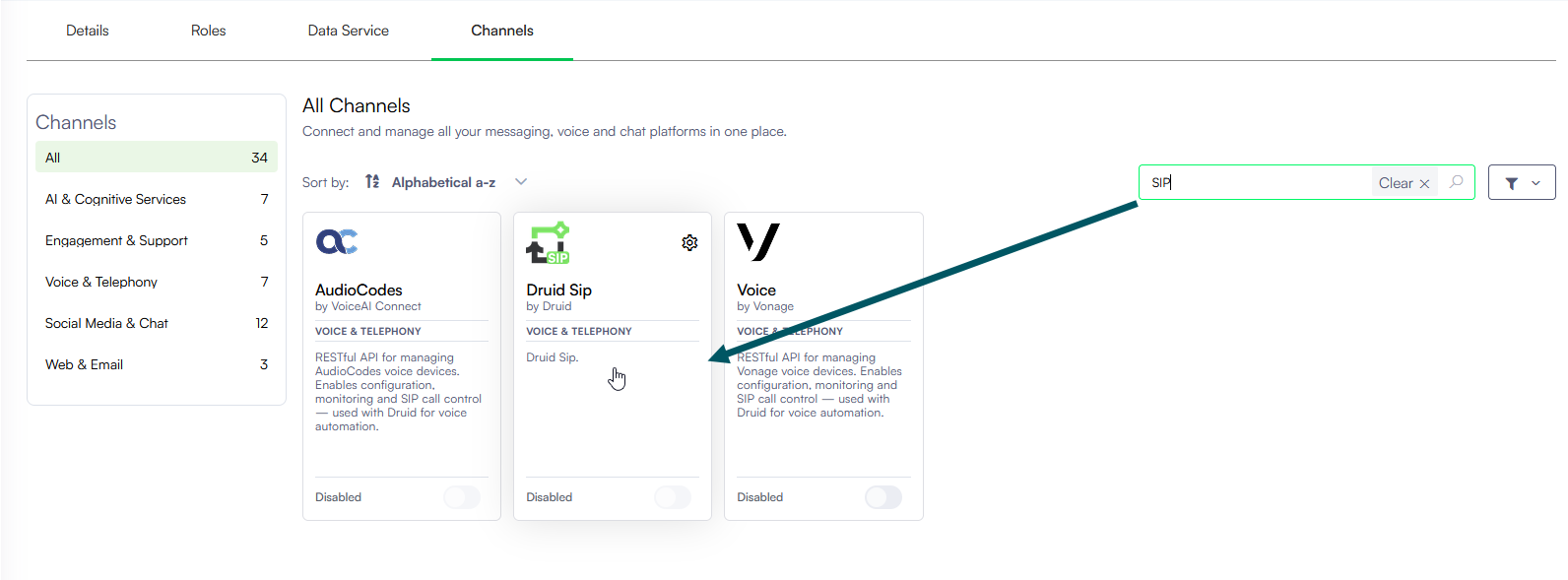
- Search for 'sip' and click on the Druid SIP card.
- In the configuration modal, General tab, configure the following parameters:
- Click the Add button to add a new row.
- Enter the specific IP address in the IP address field.
- Select the transport Protocol and specify the Port if your setup requires fixed routing parameters.
- Save the record.
| Setting | Description | Mandatory | Default value |
|---|---|---|---|
| SIP FQDN |
The SIP FQDN of the voice AI Agent. Currently supported protocols:TLS, TCP and UDP, on port 5060. Info: Copy the SIP FQDN as you will need it to connect the telephony system to Druid.
|
||
| Test Call |
Opens a modal where you can speak directly with your AI Agent to verify the configured speech services in real time. This test bypasses Sip FQDN, IP whitelisting, and connection type rules. For more information, see Test Druid SIP Calls. Info: This feature is available starting with Druid 9.27.
|
||
| Enable mTLS |
Turn this toggle on to enforce Mutual Transport Layer Security (mTLS) for SIP connections, which requires a valid client certificate for authentication. When enabled, connecting clients must present a valid client certificate during the TLS handshake. IMPORTANT! Only certificates issued by internationally trusted Certificate Authorities (CAs) are supported. Self-signed certificates and certificates issued by private or internal CAs are not supported.
|
||
| Connection Types |
Select the transport protocol(s) used for SIP signaling. At least one connection type must be enabled; you cannot disable all of them. IMPORTANT! For TLS connections, server certificates must be issued by an internationally trusted CA; self-signed certificates and private CA certificates are not supported.
|
||
| Allowed IPs |
Specify the authorized IP addresses from your telephony/SIP provider allowed to send signaling traffic to Druid SIP. Info: You may define up to 10 addresses.
To add an address entry: The Type is set to Simple by default. To enforce a zero-trust security model and prevent unauthorized access, this field requires explicit, individual IP addresses. Info: If your telephony provider requires whitelisting IP subnets (such as CIDR blocks or specific IP ranges), please contact Druid Support for advanced security provisioning.
Use the Edit or Delete icons in the Actions column to manage existing configuration entries. |
||
|
Phone numbers |
The DID phone numbers assigned to the AI Agent. Enter each number on a new line. IMPORTANT! This is the identifier of the voice AI Agent and must be written in the exact same format as it's being sent through the SIP Invite event, by the contact center solution (for example, any E.164 format: +1 321 111 222 3333).
|
Yes |
|
Now configure the call settings.
Step 2. Configure the call settings
Click the Call Settings tab and configure the following parameters:
| Setting | Description | Mandatory | Default value |
|---|---|---|---|
| Enable Audio Recordings | Captures and stores the audio recordings of the voice interactions handled by the SIP trunk. | No | true |
|
DTMF buffer timeout (ms) |
The time to wait for the next touch-tone digit before processing the input. |
Yes |
3000ms |
|
DTMF buffer terminator |
The DTMF character used to indicate the end of user input. Leave the field empty to use only the DTMF timeout or the buffer length. |
No |
# |
|
DTMF max buffer length |
The maximum number of digits allowed before the input is automatically sent. |
Yes |
1 |
|
DTMF duplicate filter (ms) |
The duration in milliseconds used to ignore accidental duplicate touch-tone inputs. |
Yes |
20s |
Map incoming SIP headers
You can map custom or standard incoming SIP headers sent by your contact center or Session Border Controller (SBC) directly to fields within the Druid [[QueryParams]] entity. This allows you to extract caller contextual data (such as account IDs, priority flags, or custom session tokens) and pass it into flow logic during call setup.
To map incoming SIP headers:
- Scroll down to the SIP Headers section and click + Add Header.
- In the SIP Headers column, enter the exact name of the incoming header from the telephony provider or contact center. (e.g., x-CustomerId).
- In the [[QueryParams]]. column, enter the target field in the [[QueryParams]] entity where the incoming SIP header value will be mapped and stored for use in flow logic (e.g., CustomerId).
- Save the mapping.
Configure the desired speech services following the instructions in the subsequent section.
Step 3. Configure the speech services
Click the Speech tab and define the speech services that Druid SIP will use to process and synthesize voice interactions.
Configure the voice recognition (STT) settings
In the Speech-to-Text (STT) section, configure the following settings:
- From the Speech-to-Text Resource dropdown, select a speech resource you already created on the tenant. For more information, see Speech Resource Management and Governance.
- Configure how the system detects speech, manages background noise, and allows the user to speak over the AI Agent:
- If using Druid or ElevenLabs, turn on the Use External VAD toggle to use the STT provider's Voice Activity Detection (VAD) to identify when speech begins and ends.
- The Language detection mode controls when and how often the system analyzes the incoming audio to identify the spoken language. Select the desired option:
- None: No automatic language detection is performed.
- At Start: The language is identified only at the very beginning of the interaction, then the language returned by the AI Agent is used.
- Continuous: Language detection is performed continuously throughout the conversation.
- Configure the detection timeouts:
| Setting | Description | Mandatory | Default value | ||||||||||||||||
|---|---|---|---|---|---|---|---|---|---|---|---|---|---|---|---|---|---|---|---|
| Enable VAD | Enables Voice Activity Detection to identify when a user starts or stops speaking. | Yes | true | ||||||||||||||||
| Speech threshold | The sensitivity level (0 to 1.0) for detecting speech. Higher values require louder input. | Yes | 0.5s | ||||||||||||||||
| Enable barge-in | Allows the user to interrupt the AI Agent while it is speaking. | No | true | ||||||||||||||||
|
Barge-in consecutive frames |
The number of consecutive audio frames required to trigger a barge-in interruption. Adjusting this value allows you to balance the AI Agent responsiveness against the risk of false triggers from background noise. Default Value: 3 frames (during tech preview). A lower frame count makes the AI Agent more sensitive to interruptions, while a higher frame count requires a longer, sustained sound to trigger a response. Use the table below to estimate the impact of your frame count on the user experience:
|
No |
3 |
| Timeout | Description |
|---|---|
| Silence duration (ms) | The amount of silence required after a user stops speaking before the system considers the utterance finished and begins processing. Increase this value if users are frequently cut off mid-sentence; decrease it to make the AI Agent more responsive. |
| Conversation Idle Timeout Seconds | The duration of total inactivity allowed before the call is automatically disconnected. Default value: 120s. |
Now configure STT.
Configure the voice synthesis (TTS) settings
In the Text-to-Speech (TTS) section, configure the voice synthesis settings. You can use different TTS service providers for different AI Agent languages.
To add a TTS provider for a specific language:
- Click the Add language button.
- In the Language field, enter the standard Druid language code (for example, ro for Romanian) that matches either the default or an additional language configured for your AI Agent. For more information, see Druid Supported Languages.
- From the Text-to-Speech Resource dropdown, select a speech resource you already created on the tenant. For more information, see Speech Resource Management and Governance.
- Save the configuration.
Context Parameters
After the Druid SIP configuration activates, the system automatically provisions specific [[ChatUser]] parameters within the conversation context. The following parameter is initialized by default:
[[ChatUser]].ChannelId = "druid-sip"
Step 4. Connect your telephony system to Druid
Configure your telephony provider to use the SIP FQDN as the primary routing domain. You can find this value in the Druid SIP Configuration modal.
Testing with MicroSIP
For testing purposes, follow these steps to configure MicroSIP:
- Download and install MicroSIP from the official website.
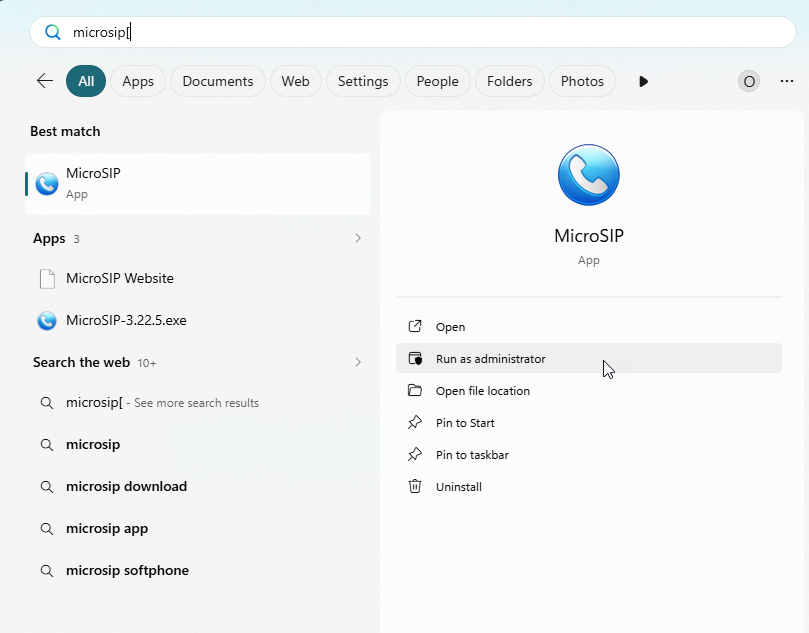
- Run the application as Administrator.
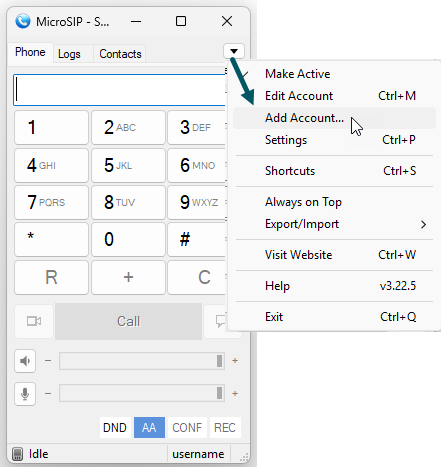
- Set up an account:
- Click the Actions icon (the downward arrow) and select Add Account.
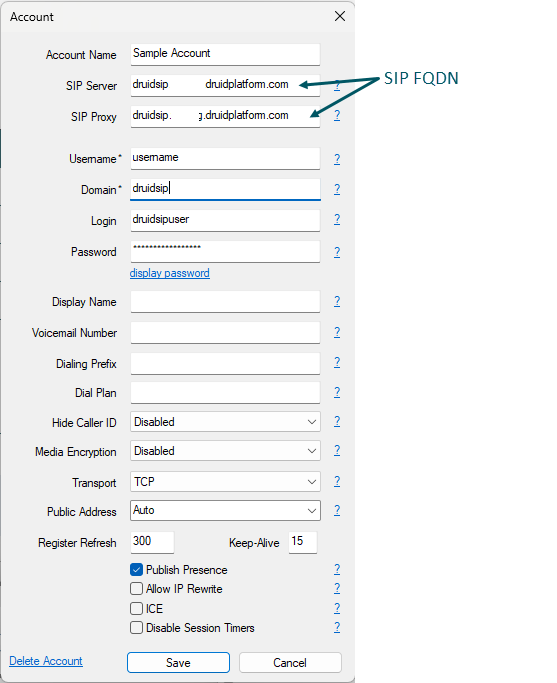
- Complete the following fields in the Account modal:
- Click Save to activate the account.
| Field | Description |
|---|---|
| Account Name | Enter a name for your reference. |
| SIP Server | Enter the SIP FQDN copied from the Druid Portal. |
| SIP Proxy | |
| Username | Enter your designated SIP username. |
| Domain |
Enter the details you received from Druid. |
| Login | |
| Password | |
| Media Encryption |
Select Disabled for standard unencrypted RTP, or choose Optional / Mandatory SRTP. Druid automatically adapts and negotiates SRTP during the SIP handshake whenever requested by MicroSIP. |
| Transport |
Select TLS, TCP or UDP. Druid communicates with telephony systems on port 5060. |